How Do You Use WordPress?

How Do You Use WordPress? Easy Guide for Beginners
Building your own website once felt like a task reserved exclusively for software engineers and computer programmers. You had to understand complex coding languages, manage intricate server setups, and spend weeks writing lines of text just to get a single page to appear online. Today, the internet looks completely different. Anyone with a computer and an internet connection can launch a beautiful, professional website in a single afternoon.
The tool that made this digital revolution possible is WordPress.
Whether you want to share your thoughts through a personal blog, showcase your creative work in a digital portfolio, build a professional website for your local business, or open an online store that sells products globally, WordPress provides the foundation you need.
The best part? You do not need a single ounce of coding skills.
If you can type a document in a word processor, send an email, and click around a standard web browser, you possess all the technical skills required to build a stunning website. This beginner WordPress guide will walk you through everything you need to know from scratch, breaking down the technical jargon into clear, practical actions you can follow immediately.
What Is WordPress?
At its core, WordPress is a Content Management System (CMS). A Content Management System is simply a piece of software that lives on the internet and helps you create, organize, edit, and publish digital content without needing to write code. Instead of manually editing files and uploading them to a server via complex tools, you use a visual, user-friendly interface to manage your site.
When you want to add a new page, write a blog post, or change an image, you simply log into your control panel, click a few buttons, and type your content. WordPress handles all the backend programming and translates your actions into clean code that web browsers around the world can understand.
Because of this incredible simplicity and flexibility, WordPress has grown to become the most popular website building platform on Earth. It powers a massive percentage of all websites on the internet. It is trusted by millions of individuals, small businesses, and massive global corporations alike.
WordPress is highly versatile and accommodates a wide variety of use cases, including:
-
Blogs: Personal diaries, niche travel sites, professional recipe blogs, and industry news platforms.
-
Business Websites: Service pages for local contractors, portfolios for creative agencies, and corporate informational hubs.
-
Portfolios: Galleries for photographers, resumes for freelancers, and writing samples for journalists.
-
Online Stores: Fully functional e-commerce shops that sell physical goods, digital downloads, or recurring memberships.
WordPress.org vs WordPress.com
One of the most common points of confusion for individuals learning how to use WordPress is the existence of two different versions: WordPress.org and WordPress.com. Understanding this distinction is vital to starting your website journey on the right foot.
| Feature | WordPress.org (Self-Hosted) | WordPress.com (Hosted Service) |
| Software Cost | 100% Free | Free basic plan, paid upgrades required |
| Hosting | You choose and pay for your own | Included automatically in their system |
| Domain Name | Custom domain (e.g., mysite.com) | Subdomain for free (e.g., mysite.wordpress.com) |
| Plugin Use | Unlimited installation allowed | Only on high-tier paid plans |
| Monetization | Total control over ads and sales | Restricted unless you pay for premium tiers |
| Maintenance | You manage updates and backups | Handled automatically by the platform |
-
WordPress.org is the home of the free, open-source WordPress software. When people refer to “self-hosted WordPress,” this is what they mean. You download the software for free, install it on a web hosting company of your choice, and enjoy complete, unrestricted ownership over your entire website. You can install any design theme, add any feature via plugins, and monetize your site however you see fit.
-
WordPress.com is a commercial, hands-off hosting service run by a company called Automattic. It utilizes the WordPress software but packages it like a traditional website builder. While it offers a free basic plan, it limits your freedom. You cannot install external plugins or custom themes unless you upgrade to their expensive premium tiers.
For this beginner WordPress guide, and for the vast majority of people building a website, WordPress.org (Self-Hosted) is the recommended option because it gives you absolute control, lower long-term costs, and unlimited room to grow.
Is WordPress free?
Yes, the core WordPress software itself is completely free. It is open-source software, which means it is created, maintained, and updated by a global community of thousands of independent developers. You never have to pay a single penny to download, use, or modify the software.
However, running a live website on the internet requires a couple of fundamental structural components that do carry small external costs: a domain name and a web hosting account.
Do you need coding knowledge?
The short answer is absolutely not. WordPress was deliberately designed to democratize publishing on the web, making it accessible to everyday users. You will navigate the entire system using a clear, visual interface. You can write articles, change colors, layout web pages, and configure settings entirely through buttons, menus, and text fields.
While advanced developers can use code to customize WordPress even further, you can easily build, run, and scale a highly successful website without ever looking at a line of code.
What You Need Before Using WordPress
Before you can dive into learning how to create a WordPress website, you need to acquire two essential pieces of digital real estate. Think of building a website like building a physical house: you need a plot of land to build on, and you need a physical address so people can find you.
A Domain Name
Your domain name is your website’s permanent address on the internet. It is what users type into their browser’s address bar to visit your site (for example, [www.yourbrandname.com](https://www.yourbrandname.com)).
When choosing a domain name as a beginner, keep these best practices in mind:
-
Stick to
.com: It is the most recognized, memorable, and trusted domain extension in the world. -
Keep it short and simple: Avoid long phrases, confusing abbreviations, or hard-to-spell words.
-
Avoid hyphens and numbers: Hyphens and numbers make your address incredibly difficult to memorize and share verbally.
-
Make it brandable: Choose a name that reflects your identity, business name, or primary topic.
A Web Hosting Account
Web hosting is the digital plot of land where your website’s files, images, code, and database live. A web hosting company owns massive, specialized computers (called servers) that stay connected to the internet 24 hours a day. When someone types your domain name into their browser, the hosting company quickly delivers your website files to that user’s device.
For beginners, shared hosting is the ideal starting point. Shared hosting means your website shares server resources with a few other websites, making it highly affordable—usually costing just a few dollars a month.
Pro Tip: Look for a beginner-friendly hosting provider that includes a free domain name for your first year, a free SSL certificate (which secures your site and adds the padlock icon to the browser bar), and an automated one-click WordPress installation tool.
How to Install WordPress
Once you have purchased your domain name and your web hosting account, the next step is to install WordPress onto your server. In the past, this required complex file transfers, but modern hosting companies have made the process incredibly seamless.
Step-by-Step: Using One-Click Installation
Nearly every reputable, beginner-friendly web hosting company features an automated system often called a “One-Click WordPress Installer” or a “Guided Setup Wizard.”
The installation process generally follows these simple actions:
-
Log into your web hosting customer dashboard.
-
Locate the section labeled Website Builder, WordPress, or Softaculous Apps Installer.
-
Click the button that says Install WordPress.
-
Select the domain name you want to use for your website.
-
Fill out the basic site details, which include your Site Name, an Admin Username, a strong password, and your personal email address.
-
Click the final Install or Finish button.
The hosting system will automatically handle the technical setup in the background, creating the database and placing the necessary files in the right folders. Within a couple of minutes, you will receive a notification confirming that your installation was successful.
The Manual Installation Alternative
While one-click installations are standard, you can technically install WordPress manually. This involves downloading the official WordPress ZIP file from WordPress.org, uploading it to your hosting server via a tool called File Transfer Protocol (FTP), manually setting up an empty database inside your hosting control panel, and running the internal configuration script.
As a beginner, you do not need to worry about this manual method. Stick to your host’s automated tools to save time and prevent technical errors.
Logging into Your WordPress Dashboard
With the software installed, you can now access the administrative control center of your website. This hidden login area is completely separate from what your public visitors see.
To access your login page, open any web browser and type your domain name followed by /wp-admin into the address bar:
[www.yourdomain.com/wp-admin](https://www.yourdomain.com/wp-admin)
On this page, you will see input fields to enter your Username or Email Address along with your Password. Type in the credentials you created during the hosting installation process and click the login button to enter your default dashboard.
Understanding the WordPress Dashboard
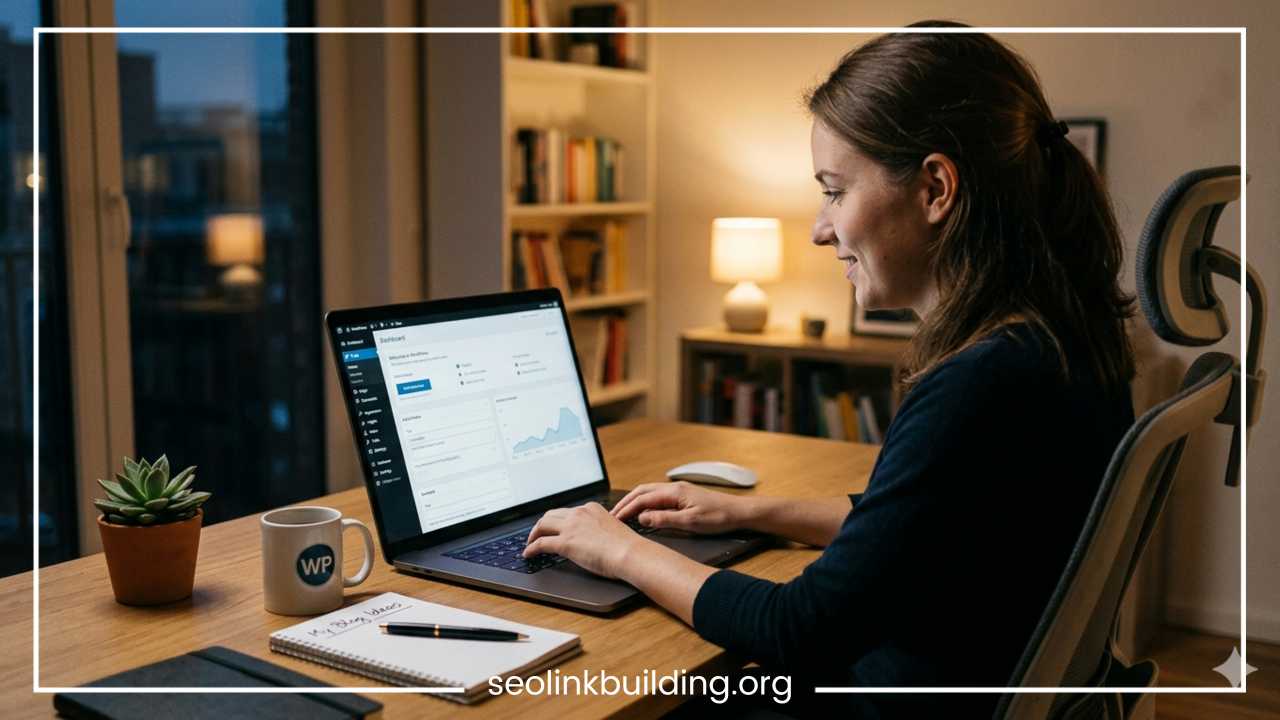
The WordPress dashboard is the administrative command center for your entire website. When you first log in, you will see a main work area in the center displaying quick links and site health notices, along with a dark vertical navigation menu running down the left side of the screen.
To master how to use WordPress, you must get comfortable navigating this left-hand menu. Let’s break down exactly what each major section is used for:
-
Dashboard: The default landing page. It provides high-level administrative summaries, notifications about software updates, and a quick-draft notepad for jotting down article ideas.
-
Posts: This is where you write and manage all of your blog articles, news updates, or time-sensitive pieces of content.
-
Pages: This area allows you to create static, permanent website pages that do not change often, such as your homepage, a services page, or an about page.
-
Media: The central media library where all your uploaded files live. This includes your images, graphics, audio clips, video files, and PDF documents.
-
Appearance: This is the design hub. From here, you can browse and install design themes, manage your navigation menus, configure sidebar widgets, and access the visual theme customizer.
-
Plugins: The feature expansion shop. This screen lets you browse, install, activate, deactivate, and delete mini-applications that add specific new features to your core website.
-
Users: A management page where you view everyone who has an account on your site. You can edit your personal password, manage your profile email, or add new users (like business partners, editors, or authors) with specific access permissions.
-
Settings: The foundational control room. This section holds sub-menus where you configure your site’s title, change the time zone, modify comment rules, and set up your web address structure.
How to Create Pages and Blog Posts
A common hurdle in any WordPress tutorial is understanding the difference between a Page and a Post. While the text editor used to create them looks identical, they serve completely different purposes on a website.
-
Pages are designed for static, timeless content. They do not display a publication date or an author name, and they do not belong to categories. Examples of essential pages include your Home page, your About page, and your Contact page.
-
Posts are dynamic, chronological entries meant for ongoing content. They feature an explicit publication date, show an author byline, and can be organized into categories and tags. Examples include blog articles, industry tutorials, or company news updates. New posts automatically appear at the top of your blog section, pushing older content down.
Step-by-Step: Creating a New Static Page
Let’s practice a real-world action by building an official “About Us” page for your website:
-
Hover your mouse over Pages in your left-hand dashboard menu and click Add New Page.
-
This opens the WordPress block editor. At the very top, click where it says Add Title and type:
About Us. -
Click into the open white area below the title and start typing a paragraph about your background, history, and mission.
-
If you want to add an image to spice up the page, press the Enter key on your keyboard to start a new line. Click the small plus icon that appears on the screen, select the Image block, and click Upload to select a photo from your computer.
-
Once your text and images look perfect, look at the top right corner of the screen and click the blue Publish button. Confirm the action by clicking Publish a second time.
Your new page is officially live on the internet!
Step-by-Step: Writing Your First Blog Post
Creating a blog post follows a very similar, straightforward sequence:
-
Hover over the Posts item in your dashboard menu and click Add New Post.
-
Type an engaging, catchy article headline into the title block.
-
Click into the main body area below and write your thoughts, use headings to organize your points, and embed rich media.
-
Look at the settings panel on the right side of your screen. Under the Post tab, locate the Categories section. Click Add New Category to organize your post (for example, creating a category named Travel Tips or Recipes).
-
Scroll down slightly in that same right-hand panel to locate the Featured Image section. Click Set featured image to upload the primary cover photo that will represent this article across your site.
-
When your formatting is complete, click the blue Publish button at the top right of your screen.
How to Customize Your WordPress Website
Now that your site has content, you will want to personalize its design. WordPress handles design through Themes. A WordPress theme is a pre-designed collection of layouts, stylesheets, and structural elements that dictates exactly how your website looks, behaves, and presents content to the public.
When you install a new theme, you instantly change your site’s appearance—including fonts, color palettes, headers, footers, and page structures—without altering any of the words or images you have already written.
How to Find and Install a Design Theme
WordPress provides an enormous internal library containing thousands of beautiful, high-quality design themes completely free of charge.
-
Navigate to Appearance in your dashboard and click Themes.
-
At the top of the theme management page, click the Add New Theme button.
-
You can browse themes using the Popular, Latest, or Favorites tabs, or use the search bar to find styles tailored to your industry (such as “restaurant,” “portfolio,” or “photography”).
-
When you find a design you like, hover your mouse over it and click the Install button.
-
Wait a brief moment for the installation to finish, and then click the Activate button to apply the design to your live website.
Personalizing Your Theme Design
Once your theme is active, you can fine-tune its elements to match your brand style. Navigate to Appearance and click Customize (or use the Site Editor menu depending on the specific theme you selected). This launches a real-world visual editing pane.
From here, you can choose menu paths to adjust your site design:
-
Site Identity: Change your site title, add an explanatory tagline, or upload a custom business logo.
-
Colors: Select your primary and background color palettes.
-
Typography: Choose matching font pairings for your body text and headings.
-
Menus: Build and arrange your primary header and footer navigation links.
-
Widgets: Configure functional content blocks in your sidebar or footer areas.
When you are happy with your structural design updates, click the Publish button at the top of the editing panel to save your changes permanently.
How to Install Plugins in WordPress
If themes control how your website looks, Plugins control what your website can do. A plugin is a supplementary piece of software that integrates directly into your site, adding new functionalities that are not included in the core software by default.
Think of plugins like apps on your smartphone. Out of the box, your phone can make calls and send texts, but you download apps to check the weather, play games, or track your fitness. Similarly, plugins can transform a basic text blog into a fully functional real-estate listing site, a social network, or a thriving online store.
How to Install a WordPress Plugin
Installing plugins uses a clear process very similar to theme installation:
-
Navigate to Plugins in your dashboard and click Add New Plugin.
-
Use the search bar in the top right corner to look for a specific function or plugin name.
-
When you locate the desired plugin in the directory search results, click Install Now.
-
Once the button shifts to say Activate, click it to turn the plugin on and make it live on your site.
Essential Beginner Plugin Categories
While there are over 60,000 free plugins available, you should avoid installing too many at once, as an overloaded site can run slowly. Instead, focus on setting up one high-quality plugin from each of these foundational beginner categories:
-
Search Engine Optimization (SEO): Helps your pages rank higher on search engines like Google by guiding you through keyword optimization and meta descriptions.
-
Security: Keeps your website safe from malicious software, brute-force hacking attempts, and digital bad actors.
-
Backups: Automatically saves separate backup copies of your entire website to a secure cloud location, ensuring you can restore your content if something breaks.
-
Contact Forms: Simple form builders that let visitors send secure email inquiries straight from your Contact page.
-
Speed Optimization: Compresses your images and cleans up site processes so pages load instantly for your visitors.
Basic WordPress Settings to Change
When you first complete a standard WordPress installation, the software comes pre-loaded with generic default values. To make your site look completely professional and operate optimally, spend five minutes adjusting these foundational settings.
1. Update the General Identity
Go to Settings and select General. Here, replace the generic default site name and tagline with your real business name or personal brand description. Next, scroll down to check your Timezone, ensuring it matches your local region so that future scheduled blog posts publish exactly when you want them to.
2. Configure Clean Permalinks
A permalink is the web address structure used for your individual pages and posts. By default, WordPress might set your links to a messy format using symbols and numbers, such as [www.yourdomain.com/?p=123](https://www.yourdomain.com/?p=123).
To change this to a human-readable format, navigate to Settings and click Permalinks. Under the common settings list, select the option labeled Post name. This changes your links to use clean text matching your title, like [www.yourdomain.com/sample-post](https://www.yourdomain.com/sample-post). Click the Save Changes button at the bottom of the screen to lock it in.
3. Adjust the Reading Rules
Navigate to Settings and click Reading. Here, you decide what visitors see the second they load your root domain name. If you want your site to function like a classic blog, leave the setting on Your latest posts. If you want a modern corporate look, switch the selection to A static page and choose your custom homepage from the dropdown menu.
Essential WordPress Tips for Beginners
As you continue learning how to use WordPress, implementing a few smart workflows early on will save you massive headaches down the road.
-
Keep Everything Updated: WordPress regularly updates its core software, themes, and plugins to add new features, fix bugs, and patch security vulnerabilities. Check your Dashboard > Updates screen weekly and click update.
-
Use Strong Account Passwords: Protect your hard work. Avoid using basic administrative usernames like “admin” or “manager,” and use long, complex passwords for your login accounts.
-
Optimize Your Uploaded Images: Large, uncompressed camera photos will slow your website down significantly. Before uploading any graphic or image to your Media library, compress the file size using free online image compression tools.
-
Avoid Plugin Overload: It is tempting to install dozens of cool plugins, but having too many active plugins can clash with one another, slow down your site, and introduce security issues. Only keep plugins you actively use.
-
Choose a Lightweight Theme: Prioritize speed and responsiveness over complex visual animations. Lightweight, highly-rated themes provide faster loading times and better overall user experiences.
Common WordPress Mistakes to Avoid
When building a website for the first time, it is easy to trip over common pitfalls. Knowing what these errors are helps you steer clear of them easily:
-
Ignoring regular backups: Assuming your web host handles backups can leave you stranded. Always use a dedicated backup plugin to save independent copies of your content.
-
Leaving the default tagline active: Leaving the “Just another WordPress site” tagline active instantly signals an unmaintained, amateur website. Always remove or customize this text in your General Settings.
-
Forgetting to set up a contact form: Simply typing your personal email address out in plain text on your contact page exposes your inbox to massive amounts of automated automated spam. Always use a secure form builder plugin instead.
-
Using copyrighted images for site graphics: Downloading pictures directly from search engines can lead to severe legal trouble. Always source your website graphics from licensed, royalty-free stock image platforms or capture your own.
-
Deleting themes or plugins incorrectly: If you want to get rid of a plugin or theme, do not just leave it sitting inactive. Deactivate it and then click the red Delete button to purge its files completely from your server database.
Final Thoughts
Learning how to use WordPress might feel like learning a brand-new language at first, but the system is incredibly intuitive once you understand its layout. By breaking the process down into manageable chunks—setting up hosting, exploring the dashboard, writing posts, and using themes and plugins to customize your design—you can create an exceptional website tailored to your exact needs.
Remember, you cannot break your website simply by clicking through the menu options. Don’t be afraid to experiment with different layouts, try out new blocks in the post editor, and test out various free themes to see what feels right for your brand.
Practice is the ultimate way to learn WordPress. The more time you spend clicking around the dashboard, creating test pages, and tweaking your settings, the more confident and capable you will become. Take it one step at a time, start with a simple design, and watch your digital space grow!
Frequently Asked Questions
How much does it cost to build a WordPress website for beginners?
While the core WordPress software is free, you will need to pay for web hosting and a domain name. Shared hosting usually costs between $3 to $7 per month, and a .com domain name costs roughly $10 to $15 per year. Many premium themes and plugins are optional, meaning a beginner can easily build and launch a fully functional website for under $100 total for their first year.
How do I log into my WordPress website once it is live?
To access your login page, open your browser address bar and type your main website URL followed by /wp-admin (for example: [www.yourdomain.com/wp-admin](https://www.yourdomain.com/wp-admin)). This brings up the secure administrative login screen where you enter the admin username and password you set up during installation.
Can I change my WordPress theme after my website goes live?
Yes, you can safely change your WordPress design theme at any time. When you activate a brand-new theme, all your written articles, media files, pages, and fundamental configurations remain saved in your database. However, because different themes use different structural layouts, you may need to spend a few minutes re-adjusting your navigation menus, home page widgets, or header settings to make everything look perfect with the new style.
What is the difference between WordPress posts and pages?
The main difference is chronological order and purpose. Posts are timely, dynamic blog articles that display a publication date, author byline, and are organized into categories; they push older content down as you publish new entries. Pages are static, timeless structural areas of your site without categories or dates—such as an About Us page, a privacy policy, or a Contact page.
Do I need a landing page builder plugin to design custom pages?
No, you do not need an external page builder plugin. The built-in WordPress block editor (Gutenberg) allows you to create highly customized layouts using multi-column sections, images, buttons, and text blocks completely on its own. While advanced plugins can offer additional design choices, the default editor is fully capable, faster, and much easier for beginners to master.
Why is my WordPress website loading so slowly and how do I fix it?
The most common reasons for a slow WordPress site are uncompressed images, using too many active plugins, or choosing a heavy design theme. You can speed up your site immediately by using an optimization plugin to compress your image files, deleting any inactive plugins you do not use, and picking a lightweight, speed-optimized theme.