How to Use WordPress to Make a Website

How to Use WordPress to Make a Website: A Step-by-Step Guide
Building a professional online presence is a foundational step for any business, creative project, or personal brand. Among the various platforms available, WordPress stands out as the undisputed leader, powering a massive portion of the entire internet. Understanding how to use WordPress to make a website is a vital skill for anyone looking to establish a digital footprint that is both powerful and flexible.
The core benefit of WordPress lies in its accessibility. Whether you are a total beginner with no coding experience or a seasoned developer looking to streamline your workflow, WordPress adapts to your needs. It is famously user-friendly, offering an intuitive interface that allows you to manage content without touching a single line of code. Furthermore, its scalability is unmatched; you can start with a simple one-page site and grow it into a complex e-commerce store or a massive multimedia portal.
With thousands of free and premium themes and plugins available, the design and functional possibilities are virtually limitless. This guide will walk you through the essential process of creating your own site. By the end, you will understand how to navigate the technical setup, customize your appearance, and ensure your site is optimized for performance and growth. Whether you aim to share your thoughts, sell products, or provide services, this WordPress website tutorial will serve as your comprehensive roadmap.
What Is WordPress?
To get started, it is crucial to understand that there are two distinct versions of the platform: WordPress.com and WordPress.org. Understanding the difference is the first step in learning how to make a website with WordPress effectively.
WordPress.com is a hosted service. It is simpler to start, but it limits your control over plugins, themes, and monetization. In contrast, WordPress.org is the self-hosted software that gives you complete ownership of your site. This is the version that professional website owners choose because it provides full autonomy, allows for deep customization, and enables you to use any plugin or theme available on the market.
Using the self-hosted version, you can create virtually any type of website. Common use cases include:
-
Business websites to establish professional credibility.
-
Blogs for sharing expertise or creative writing.
-
Portfolios to showcase graphic design, photography, or writing samples.
-
Online stores to sell digital or physical goods.
-
Membership sites to provide gated content or community forums.
Because it is open-source, the community support for WordPress is immense. When you build with this platform, you are joining an ecosystem where assistance and resources are always available. The flexibility afforded by the self-hosted model means that your website is not just a digital placeholder; it is a scalable business asset that you fully control.
Define Your Website Goals
Before you dive into the technical aspects of hosting and domains, you must define the purpose of your site. Without a clear plan, you risk building a site that lacks focus. Begin by identifying why you are creating the site. Are you trying to generate leads, share information, or sell products?
Your target audience is just as important as your purpose. Understanding who will be visiting your site helps you determine the tone, design, and content strategy. If your audience consists of corporate professionals, your design should be clean and minimalist. If it is for a creative hobbyist group, you might opt for more vibrant colors and interactive elements.
Finally, outline your basic website structure. A typical site benefits from a core set of pages that guide the user through their journey. Consider this standard structure as a starting point:
| Page | Purpose |
| Home | Provide an overview and clear call to action |
| About | Establish trust and share your story |
| Services | Detail what you offer or how you can help |
| Blog | Share insights to build authority and SEO traffic |
| Contact | Make it easy for people to reach you |
Mapping out this structure prevents “feature creep” later on. It ensures that every page you create serves a specific, measurable goal for your visitors and your business.
Choose a Domain Name and Hosting Provider
Your domain name is your brand’s address on the internet. It should be short, easy to remember, and easy to spell. If possible, use keywords that describe your niche, but prioritize brandability. Avoid hyphens or complex numbers that can confuse your visitors. A great domain name is the first impression; ensure it reflects the professionalism you intend to convey.
Hosting is the environment where your website files live. Choosing the right provider is one of the most critical decisions you will make. You need a host that prioritizes speed, as site loading times affect both user experience and search rankings. Security is equally vital; look for hosts that provide free SSL certificates and regular malware scanning. Excellent customer support is the final piece of the puzzle—you want a team available to help you when things go wrong.
There are several types of hosting to consider:
-
Shared Hosting: This is the most cost-effective option for beginners, where your site shares server resources with other websites. It is perfect for starting out.
-
Managed WordPress Hosting: A premium option that takes care of technical updates, backups, and security specifically optimized for the platform. This is highly recommended for growing businesses.
-
VPS Hosting: Offers more power and control, ideal for sites that have grown beyond basic shared hosting capabilities and require dedicated resources.
Install WordPress
The modern installation process has become incredibly simple. Most quality hosting providers offer a one-click WordPress installation tool. This allows you to launch your site in minutes without any manual file management. You simply provide your site name, create a username, and select a strong password.
For those who need to perform a manual installation, the process involves downloading the WordPress core files from the official website, creating a MySQL database through your hosting control panel, and uploading the files via FTP. While slightly more technical, it is a standard procedure documented by most hosts. This manual route gives you a deeper understanding of how the files interact with your server environment.
Once installed, you will access your dashboard using your admin URL, which is usually your domain name followed by /wp-admin. This is your command center. You will be prompted to enter your credentials, and from here, you have full control over every aspect of your site’s content, design, and functionality. Treat your login credentials with care, as they are the keys to your digital property.
Understand the WordPress Dashboard
The WordPress dashboard is designed to be intuitive, even for non-technical users. It is divided into several primary sections:
-
Posts: This is where you create and manage your blog entries.
-
Pages: Use this for static content, such as your About or Contact pages.
-
Media Library: This serves as the storage area for all your images, videos, and documents.
-
Appearance: Control your design, themes, and menu structures here.
-
Plugins: This is the hub for extending the functionality of your site.
-
Users: Manage administrative access and author profiles.
-
Settings: Configure your site’s name, permalinks, and reading preferences.
Navigation is straightforward. The sidebar menu acts as your primary roadmap. Spend time clicking through each section to familiarize yourself with the interface. Small tips, like customizing your screen options at the top of the page, can help you clean up your workspace so you only see what you actually use. As you become more comfortable, you will find that the dashboard is remarkably efficient at handling large volumes of content.
Choose and Customize a Theme
WordPress themes control the visual appearance of your site. They define your layout, color schemes, and typography. You can browse thousands of themes directly from your dashboard under the Appearance tab.
There are both free and premium options. Free themes are excellent for getting started, while premium themes often offer more advanced customization settings, dedicated support, and unique layouts. Regardless of which you choose, always ensure your theme is responsive, meaning it automatically adjusts to look great on mobile phones, tablets, and desktop computers. Given that most web traffic is mobile, responsiveness is not optional.
Customization is performed through the theme customizer or the site editor. This allows you to upload your logo, change colors to match your brand, and select readable fonts. You can also define your header and footer sections, which often contain your navigation menus and contact information. Consistency in your design is key to building a professional, trustworthy image. By maintaining a cohesive aesthetic, you reinforce your brand identity to every visitor who lands on your site.
Create Essential Website Pages
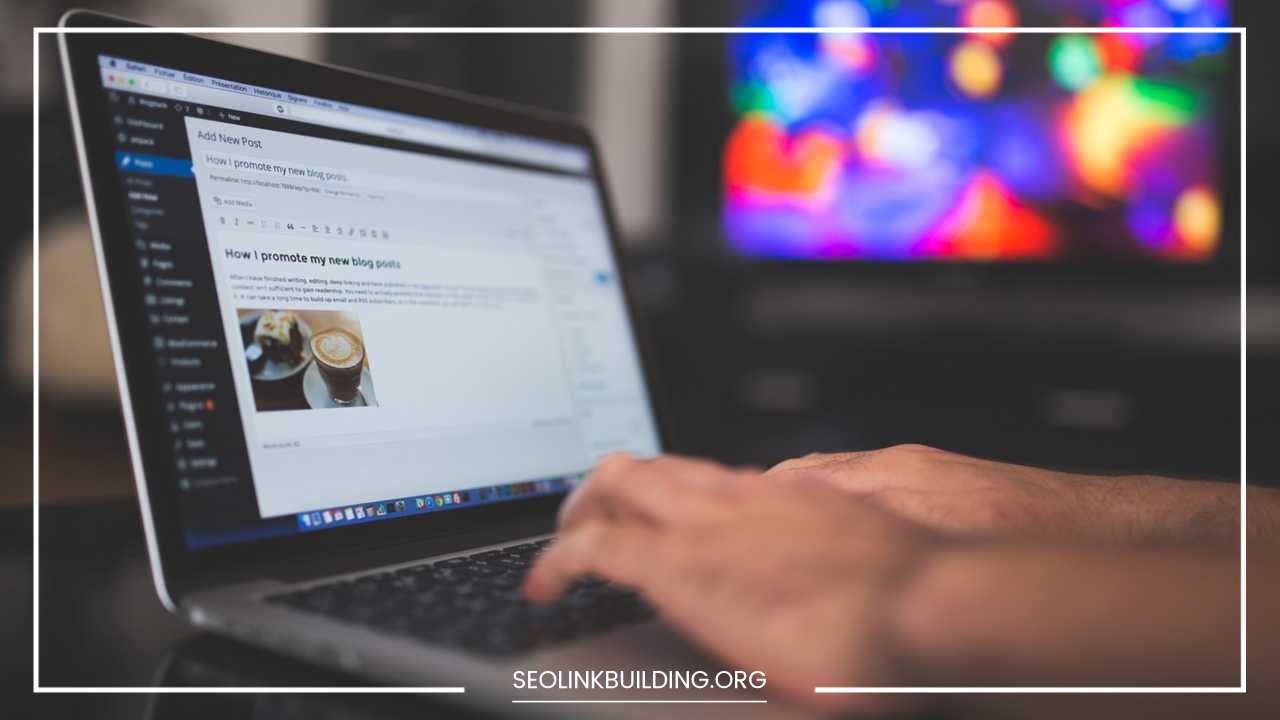
Creating content in WordPress is handled by the Block Editor, also known as Gutenberg. This editor uses a drag-and-drop system of blocks to build your page layouts. You can add text blocks, image blocks, columns, buttons, and more with just a few clicks.
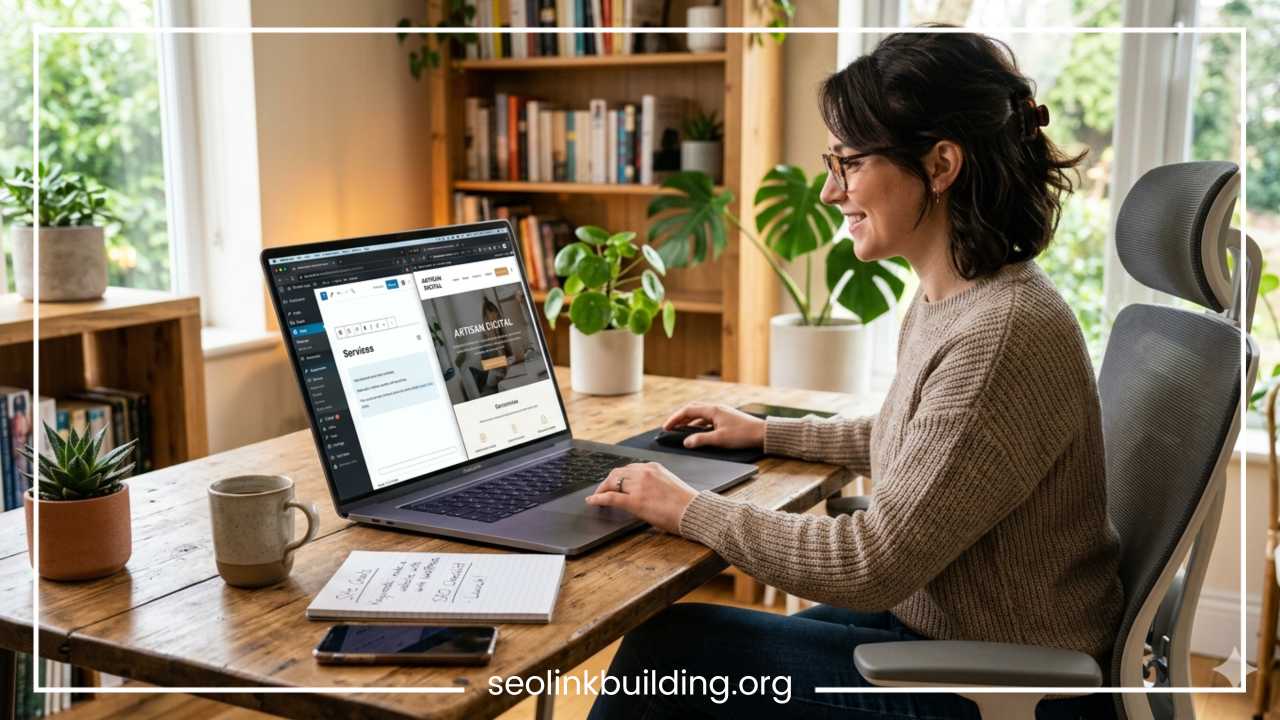
To build your site, start by creating the pages identified in your initial plan. Go to the Pages section, select Add New, and begin adding your content. For your Home page, focus on a clear headline that explains what you do and a strong call to action. For your About page, tell your story in a way that resonates with your audience.
Ensure that your page structure is logical. Use headings, subheadings, and bullet points to break up large blocks of text. This makes your content much easier to read and scan, which is essential for user engagement in the digital age. Do not underestimate the power of “white space”—plenty of room between elements makes your site feel welcoming and organized, encouraging users to stay longer and explore more of your pages.
Install Essential Plugins
Plugins are software components that add specific features to your WordPress site. Think of them as apps for your website. While it is tempting to install many, it is best practice to keep your plugin count low to ensure your site remains fast and secure.
Focus on these essential categories:
-
SEO: Plugins like Yoast SEO or Rank Math help you optimize your content for search engines.
-
Security: Plugins such as Wordfence protect your site from brute-force attacks and malware.
-
Backups: Always use a reliable backup plugin to keep a copy of your site off-site.
-
Contact Forms: Tools like WPForms or Contact Form 7 make it simple to gather leads.
-
Performance: Caching plugins help your pages load significantly faster for visitors.
Always verify that the plugins you choose are compatible with your current version of WordPress and have been updated recently by their developers. Read reviews and look at the support forums for any plugin before you install it to ensure it has a track record of stability and quality.
Optimize Your Website for SEO
Search Engine Optimization (SEO) is the process of making your site more visible in search results. Start with basic keyword research to understand what terms your audience uses to find services like yours.
Once you have your keywords, implement them naturally in your content. Use them in your meta titles and descriptions, which are the snippets of text that appear in search engine results. Keep your URLs clean and descriptive—for example, use /about-us rather than /page-id-123.
Other critical SEO practices include internal linking, where you connect your own pages to each other to help search engines understand your site structure. Image optimization is also vital; always compress your images to ensure they do not slow down your loading times. Finally, ensure your design is mobile-friendly, as search engines heavily prioritize mobile performance. By following these steps consistently, you create a site that search engines find easy to crawl and index, which ultimately drives organic growth for your brand.
Test and Launch Your Website
Before you announce your site to the world, perform a final audit. Check every single link to ensure there are no broken paths. Test your contact forms by sending a test message to ensure it arrives in your inbox.
Review your mobile responsiveness by viewing your site on different devices or using browser developer tools. Optimize your loading speed by testing your site on free tools; if it takes more than a few seconds, look for heavy images or redundant scripts to remove. Proofread all your content for grammar and clarity.
Finally, set up your analytics. Google Analytics is the industry standard for tracking who visits your site, where they come from, and how they interact with your content. Once you are satisfied with these checks, your site is ready for the world. Launching is just the beginning; treating your site like a work in progress will pay dividends in the long run.
Maintain and Grow Your Website
A website is never truly finished; it is a living project that requires ongoing care. To keep your site running smoothly, you must keep WordPress core, your themes, and your plugins updated. These updates often contain critical security patches.
Perform regular backups so that if anything goes wrong, you can quickly restore your site to a previous state. Consistency is also the secret to growth. Regularly publish fresh, valuable content that answers your audience’s questions. This builds authority and brings more traffic to your site over time.
Finally, monitor your performance data. Use your analytics to see which pages are performing best and which are not. Use these insights to refine your strategy, improve your content, and continually offer more value to your visitors. Whether you decide to expand your product line or start a monthly newsletter, always listen to the data to guide your future decisions.
Common WordPress Mistakes to Avoid
Even experienced users sometimes fall into traps. One of the most dangerous mistakes is ignoring updates. Outdated software is the primary entry point for hackers. Always keep your environment current.
Using weak passwords is another significant vulnerability. Ensure all administrative accounts use unique, complex passwords and implement two-factor authentication whenever possible. Another common issue is installing too many plugins. This can create “bloat,” slowing down your site and causing conflicts between different pieces of software.
Forgetting to perform regular backups is a mistake you only make once. If your site is hacked or a server fails, a backup is your only insurance policy. Lastly, avoid choosing poor hosting. Saving a small amount of money on a cheap, unreliable host often costs more in the long run due to lost traffic, security issues, and downtime. Prioritize stability and reliability above short-term cost savings.
Final Thoughts
Learning how to use WordPress to make a website is an empowering journey that gives you total control over your digital presence. While the process involves several steps—from choosing a domain and hosting to customizing your design and optimizing for SEO—it is a logical and manageable path that anyone can master.
Remember that you do not need to build the perfect site on your first day. Most successful websites start small, with a few core pages and a simple design, and then grow as their owners learn more about their audience and goals. WordPress provides the perfect foundation for this evolution, allowing you to scale up your functionality as your business or project matures.
Start by defining your vision, follow these steps with care, and do not be afraid to experiment with the tools at your disposal. You now have the knowledge to build a professional website, optimize it for success, and maintain it as an asset for years to come. Your online presence begins with this first step. By staying consistent and keeping your audience’s needs at the forefront, you will build a digital home that serves your goals and grows alongside your ambition. Take the leap, install the software, and start crafting your corner of the internet today.
Frequently Asked Questions
How do I choose the best hosting provider for my first WordPress website?
When selecting a host, prioritize reliability and speed. Look for providers that offer managed WordPress hosting, as they handle server-side optimizations like caching and security updates for you. Ensure they provide a free SSL certificate, daily automated backups, and 24/7 customer support, which are crucial for beginners who may need technical assistance.
Is it possible to start a professional website with WordPress without any coding knowledge?
Yes, you do not need to know HTML, CSS, or PHP to build a professional-grade site. WordPress uses a block-based editor that allows you to design pages using drag-and-drop elements. Most modern themes also offer visual customizers that let you change fonts, colors, and layouts without writing a single line of code.
What is the difference between WordPress.com and WordPress.org for a small business?
WordPress.org is a self-hosted platform that gives you complete ownership and control over your website, allowing you to install any plugin or custom theme. WordPress.com is a hosted service that manages hosting for you, but it significantly limits your ability to monetize your site, use custom plugins, or deeply customize your design, making the self-hosted version the preferred choice for businesses.
How many plugins should I install on my WordPress site to keep it fast?
There is no “magic number,” but the best practice is to only install plugins that provide essential functionality. Installing too many plugins—especially those that perform similar tasks or are poorly coded—can lead to site bloat and slower loading speeds. Always audit your plugins periodically and delete any that you are not actively using to keep your site performance optimized.
Why is my WordPress website loading slowly, and how can I fix it?
Slow loading speeds are often caused by unoptimized images, too many active plugins, or poor-quality hosting. To improve speed, use an image compression plugin to reduce file sizes, implement a caching plugin to store static versions of your pages, and use a Content Delivery Network (CDN) to serve your content faster to visitors around the globe.
How can I make my WordPress website more secure from hackers?
Security starts with keeping your WordPress core, themes, and plugins updated at all times. Use a reputable security plugin to monitor for suspicious activity, enforce strong password policies for all users, and ensure you have a reliable backup solution in place. Regularly backing up your site ensures that even in the event of a security issue, you can quickly restore your content.
What are the most important SEO steps for a new WordPress site?
To rank better in search results, start by installing an SEO plugin to manage your meta titles and descriptions. Focus on creating high-quality, valuable content that includes your target keywords naturally. Additionally, ensure your site structure is clean, your URLs are descriptive, your images have alt text, and your design is fully mobile-responsive.