How to Develop Website Using WordPress

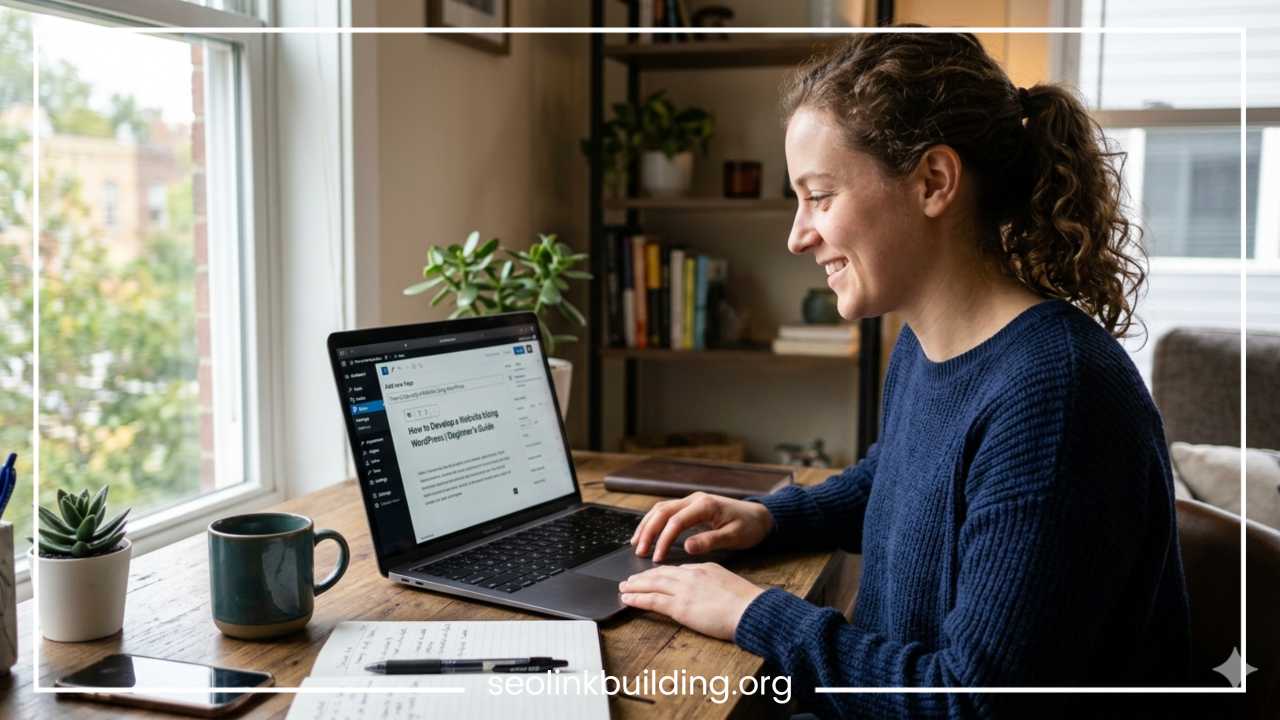
How to Develop a Website Using WordPress | Beginner’s Guide
Building a website used to be a task reserved exclusively for software engineers and web developers who spent hundreds of hours writing lines of code. Today, the digital landscape is completely different. Anyone with a computer and an internet connection can build a professional, highly functional website in just a few hours. This shift is largely due to the rise of Content Management Systems, with WordPress leading the charge.
WordPress is an open-source content management system that powers a massive portion of all websites on the internet. In simple terms, it is a software platform that allows you to build, customize, and manage a website without needing to write code from scratch. It bridges the gap between complex database systems and the end-user by providing a visual dashboard where you can manage your text, media, and design elements effortlessly.
The platform is incredibly popular because it combines a low barrier to entry with limitless growth potential. Beginners love it because the initial setup is visual and intuitive, while major global corporations use it because it can handle massive traffic and complex data structures.
For a beginner, the benefits of using WordPress are substantial. First, there is the advantage of ease of use; if you can navigate a word processor or fill out an online form, you can learn to navigate the dashboard. Second, no coding skills are required to make a beautiful site. You do not need to know HTML, CSS, or PHP to launch your page. Third, the platform offers immense flexibility and scalability. You can start with a basic single-page site and eventually grow it into a massive global enterprise portal.
The types of websites you can build with WordPress are practically unlimited. Beginners often use it to create:
-
Personal or Professional Blogs: Ideal for sharing thoughts, building an audience, or publishing niche content.
-
Business Websites: Designed to establish an online presence, showcase company services, and capture client leads.
-
E-commerce Stores: Online shops created to sell physical goods, digital downloads, or services globally.
-
Portfolio Websites: Used by photographers, writers, designers, and artists to display their professional work to potential clients.
-
Community Forums and Membership Sites: Platforms where users can register, interact, and access exclusive content.
What You Need Before Building a WordPress Website
Before you begin assembling your website, you need to gather a few essential components that serve as the foundation of your online presence. Think of building a website like building a house: you need a physical location, an address, a security system, and the building materials.
To launch a website, you must secure four distinct elements:
-
Domain Name: The unique digital address that people type into their browser to find your site.
-
Web Hosting: The remote server space where your website’s files, images, database, and code are securely stored and served to visitors.
-
SSL Certificate: A cryptographic protocol that secures the connection between your server and a visitor’s browser, turning your URL prefix from HTTP to HTTPS.
-
WordPress Installation: The core software script that coordinates your design, files, and settings into a cohesive website.
It is common for beginners to confuse a domain name with web hosting, but they are completely separate services. A domain name is your address, while web hosting is the physical house. If someone wants to visit your home, they need the address to find it, but the address itself provides no shelter or storage. Similarly, a domain name points internet users to the exact server where your web hosting account stores your digital files. You must have both for your website to function.
When choosing a web hosting provider, beginners should look for companies that offer high server uptime, reliable customer support, robust security features, and automated installation options. Many modern hosts package the domain name, hosting plan, and SSL certificate together, simplifying the technical setup process.
How to Choose the Right Domain Name
Your domain name is the digital identity of your brand, business, or personal project. It is the first thing people see when they visit your site, and it plays a significant role in your branding and search engine visibility. Choosing a domain requires a balance of creativity and strategic planning.
To select a domain name that stands the test of time, you should focus on several core principles:
-
Keep It Short and Memorable: Aim for a length of one to three words. The shorter your domain name is, the easier it is for users to remember, type, and share without making spelling mistakes.
-
Use Keywords Wisely: If your website focuses on a specific niche, try to include a relevant keyword. For example, a bakery in Chicago might look for a name like chicagobakeshop.com. This gives visitors and search engines an immediate idea of what your site is about.
-
Avoid Numbers and Hyphens: Numbers and hyphens create confusion when spoken aloud. If you tell someone to visit “bakery-shop2.com”, they might type “bakeryshop2.com” or “bakeryshop-two.com”. Stick entirely to letters to ensure clarity.
-
Choose the Right Domain Extension: The domain extension, or Top-Level Domain, is the suffix at the end of your web address. The clear gold standard is .com. It is the most recognized, trusted, and naturally memorized extension across the globe. If your target audience is strictly localized, country-specific extensions like .in, .co.uk, or .ca can be highly effective. For non-profit organizations, .org is the preferred choice.
If your ideal domain name is already taken, do not panic. Avoid adding complex punctuation or numbers to force it. Instead, use a thesaurus to find creative synonyms, or add a descriptive verb or noun to the beginning or end of your phrase.
Selecting a Web Hosting Provider
Web hosting is the engine under the hood of your WordPress website. The quality of your web host directly affects how fast your website loads, whether it stays online during traffic spikes, and how safe it is from digital threats. As a beginner, navigating the different types of hosting can feel overwhelming, but they generally fall into three main categories.
| Hosting Type | Description | Best Suited For |
| Shared Hosting | Multiple websites share the resources of a single physical server. It is affordable but offers limited performance if neighboring sites get heavy traffic. | Beginners, personal blogs, and brand-new small business websites with low traffic. |
| VPS Hosting | A physical server is split into isolated virtual compartments. Your site gets dedicated resources, ensuring stable performance. | Growing blogs, medium businesses, and small e-commerce shops needing steady power. |
| Managed WordPress Hosting | A premium hosting service specifically optimized for WordPress environments. The host handles technical updates, speed optimization, and backups. | Busy professionals, large e-commerce platforms, and high-traffic blogs who want hands-off management. |
When evaluating specific web hosting providers, you must assess several critical performance indicators rather than just comparing prices:
-
Speed and Performance: Slow websites frustrate users and perform poorly in search results. Choose a host that utilizes solid-state drives, modern content delivery networks, and server-side caching protocols.
-
Guaranteed Uptime: Uptime represents the percentage of time your website is operational and accessible to the public. Look for providers that guarantee an uptime rating of 99.9% or higher.
-
Advanced Security Protocols: Your host should provide firewalls, automated malware scanning, isolated file directories, and a free SSL certificate to protect your data and your visitors’ privacy.
-
Responsive Customer Support: As a beginner, you will inevitably have technical questions. Ensure your host offers 24/7 technical support through live chat or telephone communication channels.
-
One-Click WordPress Installation: This feature removes the need to manually download software zip files and configure databases, allowing you to install the core software with a single mouse click.
How to Install WordPress
Once you have secured your domain name and hosting plan, you are ready to install the WordPress software. The manual installation process used to require configuring MySQL databases and using FTP clients, but modern hosting panels have completely streamlined this task into an automated layout.
The standard automated installation workflow follows a clear, logical progression:
-
Log In to Your Hosting Control Panel: Access the administrative account provided by your web host using your login credentials.
-
Locate and Open the WordPress Installer App: Look for sections labeled “Website Builder,” “Softaculous Apps Installer,” or a direct button marked “Install WordPress.”
-
Select Your Registered Domain: Choose the specific domain name where you want the software installed from the provided dropdown menu. Leave the directory field blank to ensure the site installs directly on the main domain root.
-
Configure Administrative Account Credentials: Enter a professional administrative username, a strong password, and a valid administrator email address. Avoid using generic terms like “admin” for your username, as this leaves your site vulnerable to basic security risks.
-
Complete the Software Installation: Click the final “Install” or “Finish” button. The server will automatically create the database tables, move the core files, and configure the site architecture within a few minutes.
Once the installation finishes, the system will provide you with a unique login URL, which typically follows the format: yourdomain.com/wp-admin.
When you navigate to this URL and input your administrative credentials, you will be greeted by the primary WordPress Dashboard. This screen serves as the backend control room for your entire website. The left-hand sidebar menu provides full access to your configuration options, content creation zones, media libraries, design settings, and plugin integrations.
Choosing and Installing a WordPress Theme
A WordPress theme is a collection of files that determines the visual design, layout, and style of your website. Themes handle everything from your color schemes and typography choices to the positioning of your headers, sidebars, and navigation menus. They allow you to completely alter the look of your site instantly without changing any of your underlying content.
When browsing for options, you will encounter both free and premium themes. Free themes found in the official WordPress theme repository are excellent choices for beginners because they undergo a strict security and code-quality review process. Premium themes, purchased from private marketplaces, offer advanced customization controls, built-in page builders, and direct developer support channels.
Regardless of whether you go with a free or paid option, your theme must be mobile responsive. A responsive theme automatically shrinks, stretches, and repositions website elements to look flawless on smartphones, tablets, laptops, and desktop computers. It should also feature clean code optimization to ensure rapid loading speeds and structural compliance with modern search engine guidelines.
To install a theme directly through your dashboard, follow these instructions:
-
Navigate to the left menu sidebar, hover over Appearance, and select Themes.
-
Click the Add New Theme button located at the top of the interface.
-
Use the search bar to find a specific theme by name, or use the feature filter to browse styles.
-
Hover over the theme card, click Install, and wait for the process to complete.
-
Click the Activate button to apply the theme layout to your public live website.
After activation, you can adapt the design to match your personal preferences by navigating to Appearance and selecting Customize. This action opens the WordPress Live Customizer, a visual interface where you can upload your corporate logo, adjust typography sizes, modify primary accent colors, and configure basic widget areas while viewing a real-time preview of your changes.
Essential WordPress Plugins You Need
If themes control the visual design of your website, plugins control its functional capabilities. A plugin is an addon software extension that integrates into your site to add new features, expand operational capabilities, or streamline backend administrative processes.
To help visualize how plugins fit into your site’s ecosystem, consider these five core categories:
-
Search Engine Optimization (SEO): Tools like Rank Math or Yoast SEO add dedicated configuration blocks beneath your post editor. They help you optimize your metadata titles, write accurate descriptions, generate XML sitemaps, and analyze content readability.
-
Security Frameworks: Plugins such as Wordfence Security or Solid Security install robust firewalls, enforce strong password rules, block malicious login attempts, and actively scan core directories for file modifications.
-
Automated Backup Engines: Plugins like UpdraftPlus or BackupBuddy create identical scheduled copies of your content database and media uploads. They can automatically store these backups on remote cloud platforms like Google Drive or Dropbox.
-
Speed Optimization Systems: Caching plugins like LiteSpeed Cache or WP Super Cache convert complex dynamic database requests into static HTML pages, compress script files, and implement lazy-loading scripts for imagery to reduce loading times.
-
Contact Forms: Form tools like WPForms or Fluent Forms allow you to create interactive contact forms, customer feedback questionnaires, and email sign-up modules through a visual interface.
To install a plugin, go to your sidebar menu, click Plugins, and select Add New Plugin. Type your desired function into the search bar, click Install Now on the chosen software card, and then click Activate.
While plugins add incredible power, it is critical not to overload your website with too many of them. Every active plugin requires server resources to run. Installing dozens of plugins—especially those that are poorly coded or abandoned by developers—can cause severe plugin conflicts, slow down your site’s performance, and create dangerous security vulnerabilities. Stick strictly to essential plugins that serve a clear, ongoing purpose.
Creating Important Website Pages
With your infrastructure, design theme, and utility plugins in place, you can begin publishing core content. WordPress organizes static informational content into asset blocks known as Pages. Pages are designed for timeless information that rarely changes, unlike timely blog entries.
To build a professional user experience, every standard website needs a foundational set of core pages:
-
Home Page: The digital front door of your business or project. It must clearly state what you do, who you serve, and include prominent calls-to-action directing visitors to deeper site areas.
-
About Page: The space where you share your personal history, company mission statement, founding values, and professional credentials to build credibility and trust with your audience.
-
Services or Products Page: A clear directory outlining exactly what you offer, complete with feature summaries, transparent pricing tables, and straightforward purchase instructions.
-
Blog Page: A dynamic, automatically updating archive page that displays your articles in reverse chronological order.
-
Contact Page: A simple layout containing a functional contact form, active email addresses, telephone numbers, physical office location links, and links to your primary social media profiles.
-
Privacy Policy: A mandatory legal notice explaining how your website collects, stores, protects, and uses customer data gathered through cookies or forms.
When structuring a page, utilize clear text headings to break up long blocks of text, use readable font sizes, and leave ample empty space around your content to avoid overwhelming your readers. Once your pages are published, link them together logically using a clear navigation menu. You can build a custom menu by going to Appearance, choosing Menus, dragging your primary pages into your preferred order, and assigning the list as your “Primary” or “Header” navigation menu.
How to Create Blog Posts in WordPress
Understanding the difference between posts and pages is essential for managing your content effectively. Pages are static, standalone items meant for timeless information like an About page. Posts are timely, chronological articles designed for blog updates, news sections, or ongoing tutorials. Posts automatically feed into your main blog archive page and display dates, author bios, and interactive comment sections.
To launch the creation environment for a new article, navigate to Posts in your dashboard and select Add New Post. This opens the default Block Editor, which treats every piece of content—whether it is a heading, paragraph, image, or video embed—as an isolated modular block.
To organize your blog entries effectively, use categories and tags:
-
Categories: Broad, overarching groupings that define the primary topics of your blog. For instance, a food website might have categories like “Breakfast,” “Dinner,” and “Desserts.”
-
Tags: Specific, narrow keywords that describe minor details within an individual post. A post in the “Breakfast” category might use tags like “eggs,” “avocado,” or “pancakes.”
To keep your articles highly engaging, avoid publishing dense blocks of text. Instead, use clear formatting options like bold text for emphasis and bulleted lists to make the information easy to scan. Use the image block to insert high-quality graphics or video embeds that help illustrate your points. Before hitting the publish button, always fill out your post settings sidebar by selecting a relevant category, adding descriptive tags, and uploading a compelling featured image to serve as the post’s main visual cover.
WordPress SEO Basics
Search Engine Optimization (SEO) is the process of optimizing your website to rank higher in search engine results pages, making it easier for people to find you organically. Having a beautiful website does you little good if no one can find it when searching online. WordPress provides an excellent structural foundation for SEO, but you need to actively configure a few basic settings.
First, go to Settings and select Permalinks. Ensure your link structure is set to Post Name. This converts an unreadable link like [mysite.com/?p=123](https://mysite.com/?p=123) into a clean, keyword-friendly link like [mysite.com/how-to-bake-bread](https://mysite.com/how-to-bake-bread). Clean links are much easier for both users and search engines to read.
When writing content, pick one primary target keyword for each page or post. Incorporate this keyword naturally into your main page title, your first paragraph, and at least one subheading. Use an SEO plugin like Yoast SEO or Rank Math to write custom meta titles and descriptions. These are the text snippets that appear in Google search results; they should be descriptive, compelling, and include your target keyword to encourage clicks.
| SEO Element | Best Practice Strategy | Direct Benefit |
| Meta Titles | Keep under 60 characters; place primary keywords near the front. | Improves click-through rates from search engine results pages. |
| Meta Descriptions | Keep under 160 characters; include a clear call-to-action phrase. | Gives users a brief, compelling summary of the page content. |
| Internal Linking | Connect new articles to old related pages using descriptive anchor text. | Helps search engine crawlers discover and index your pages faster. |
| Image Optimization | Compress file sizes and fill out descriptive alt text fields. | Drastically speeds up page loading times and boosts Google Image rankings. |
Finally, make sure your site is fast and responsive. Search engines prioritize fast-loading sites that look great on mobile devices, making ongoing performance optimization a core part of basic SEO strategy.
Making Your Website Mobile-Friendly
More than half of global web traffic comes from smartphones and tablets. If your website looks great on a desktop computer but layout elements distort or collapse on a mobile phone, visitors will leave immediately. This makes mobile optimization a vital part of both user experience and search performance.
The first step in securing a mobile-friendly site is choosing a fully responsive theme. A responsive design uses flexible layouts that automatically scale down content, stack multi-column layouts into single vertical viewports, and swap out wide horizontal desktop menus for compact mobile navigation menus.
Once your design is active, test your site across a variety of screen sizes. You can check this directly on your computer by shrinking your web browser window horizontally, or by using the device emulation options found in your browser’s developer tools. Look out for text sizes that become too small to read, text overlaps, or tap targets like buttons that are placed too close together for easy touchscreen interaction.
Page speed is also incredibly critical for mobile users, who often browse on slower cellular networks. To keep loading times fast, compress all your images before uploading them, avoid heavy decorative background scripts, and use a caching plugin to deliver content efficiently. A fast, accessible mobile site keeps users engaged and lowers bounce rates.
Securing Your WordPress Website
Because WordPress powers such a significant portion of the web, it is a frequent target for automated hacking attempts and malicious scripts. However, the platform itself is not inherently insecure; most security breaches happen because of poor administrative habits, outdated files, or weak credentials. Securing your site requires a few simple, proactive steps.
-
Enforce Strong, Unique Passwords: Create complex administrative passwords that combine uppercase letters, lowercase letters, numbers, and special symbols. Avoid using the same password across multiple online accounts, and never use predictable terms like “password123.”
-
Run Regular System Updates: WordPress core developers, theme creators, and plugin engineers frequently release software patches to fix security bugs and vulnerabilities. Check your updates dashboard weekly and apply available core, theme, and plugin updates promptly.
-
Install a Dedicated Security Framework: Activate a trusted security plugin like Wordfence or Solid Security to monitor your site. These tools act like digital security guards, running firewalls to block malicious traffic and scanning your files for unexpected changes.
-
Deploy a Secure SSL Certificate: An SSL certificate encrypts the data moving between your server and your visitors’ browsers. This prevents bad actors from intercepting sensitive information like contact form entries or login credentials.
-
Automate External Backups: Set up a plugin like UpdraftPlus to take automated, daily backups of your site’s database and files. Store these copies off-site in an independent cloud storage space so you can easily restore your site if anything ever goes wrong.
How to Launch Your Website
After spending hours writing content, organizing navigation menus, and refining your layout designs, you are finally ready to launch your website. Before you share your site with the world, run through a final launch checklist to ensure every component functions perfectly.
First, walk through your site like a brand-new visitor. Click every link in your main menu, sidebar, and footer to make sure there are no broken links or error pages. Test every contact form by filling it out with dummy data to verify that the entries are sent correctly to your admin email address. Check your site’s appearance on both a laptop and a mobile phone to confirm the layout is responsive and looks clean.
Next, run your site through an online speed auditing tool like Google PageSpeed Insights. If your loading times are slow, look into optimizing large images or adjusting your caching plugin settings.
Finally, make sure search engines can see your site. Go to Settings, select Reading, and double-check that the box labeled “Discourage search engines from indexing this site” is completely unchecked. Leaving this box checked tells search engines to ignore your site, hiding it from public search results. Once that is clear, submit your XML sitemap URL through Google Search Console to help search engines find, index, and rank your new pages quickly.
Common Mistakes Beginners Should Avoid
Learning to build a WordPress website involves a bit of trial and error. You can save yourself a lot of time, expense, and frustration by keeping an eye out for these five common mistakes that beginners often make:
-
Choosing Low-Quality, Ultra-Cheap Web Hosting: Opting for the cheapest hosting plan available often results in frequent server downtime, slow page speeds, and a lack of reliable customer support when things go wrong. Investing a few extra dollars a month into a reputable host saves massive technical headaches down the line.
-
Overloading the Site with Too Many Plugins: It is easy to get excited by all the features plugins offer and install dozens of them. However, running too many plugins bogs down your server resources, slows down loading times, and increases the risk of plugin software conflicts.
-
Neglecting System Backups: Many beginners assume their web host handles all backups automatically. If a software update crashes your site or a file gets corrupted, not having an independent, up-to-date backup can mean losing hours of hard work.
-
Ignoring SEO Configuration Options: Launching a website without adjusting your permalinks, writing custom meta descriptions, or optimizing your image sizes makes it incredibly difficult to attract organic search traffic.
-
Using Predictable Logins and Weak Passwords: Keeping basic account names like “admin” combined with simple passwords leaves your site wide open to automated brute-force attacks.
Final Thoughts
Developing a website using WordPress is an empowering journey that balances user-friendly simplicity with incredible creative freedom. The platform removes the technical barriers of coding, allowing anyone to build a unique, professional digital space from scratch. By following a structured approach—from securing a great domain and web host to configuring essential plugins, writing solid content, and applying basic SEO principles—you can build a website that stands out online.
Building a successful website is an ongoing process, not a one-time project. Once your site is live, prioritize consistent maintenance, keep your themes and plugins updated, and regularly publish valuable content for your audience. Do not worry about making everything absolutely flawless on day one. The beauty of WordPress is its flexibility; you can always start small, learn the ropes, and expand your design and features over time. Start building your WordPress website today and grow your online presence.
Frequently Asked Questions
Is it hard for a beginner to build a website with WordPress?
No, it is not hard at all. WordPress was specifically designed to be user-friendly and intuitive for non-technical creators. The entire process of installing a theme, creating content pages, and publishing blog entries is done through a visual interface. If you can navigate a basic word processor or fill out online web forms, you possess all the computer skills necessary to build and manage a fully functional WordPress website.
How much does it cost to build a WordPress website from scratch?
While the core WordPress software script itself is 100% free and open-source, launching a live website requires a small initial financial investment. At a bare minimum, you will need to pay for a domain name (typically $10 to $15 per year) and a reliable web hosting plan (which ranges from $3 to $10 per month for entry-level shared hosting). This means you can comfortably launch a professional website for well under $100. Optional costs down the road include premium design themes, advanced ecommerce plugins, or custom development work.
What is the difference between WordPress com and WordPress org?
The fundamental difference comes down to hosting and website control:
-
WordPress.org (Self-Hosted): You download the free software and install it on your own third-party web hosting account. This gives you 100% ownership and control over your files, allowing you to install any plugin, use custom themes, and monetize your site without restrictions.
-
WordPress.com (Hosted Service): A commercial hosting service run by a private company. They handle the hosting for you, but your free account has strict limitations. You cannot upload custom plugins, your design options are restricted, and you cannot place independent advertisements unless you upgrade to their expensive premium monthly payment tiers.
Do I need to know coding to use WordPress?
Absolutely not. You do not need to write a single line of HTML, CSS, JavaScript, or PHP code to build a professional website. The modern WordPress ecosystem utilizes powerful visual page builders and intuitive block editors that allow you to design layouts, change typography, adjust color schemes, and embed rich media assets simply by clicking buttons and dragging elements across your screen.
How do I change my home page in WordPress from a blog to a static page?
By default, WordPress displays your latest blog posts on the main front page. To change this to a professional static home page, follow these quick steps:
-
Go to your dashboard sidebar, click Pages, select Add New, and create a page named “Home” and another named “Blog”.
-
Navigate to Settings and click on Reading.
-
At the very top under Your homepage displays, change the selection from Your latest posts to A static page.
-
Select your newly created “Home” page from the Homepage dropdown menu, and select your “Blog” page from the Posts page dropdown menu.
-
Click Save Changes at the bottom of the screen.