How to Design Website with WordPress

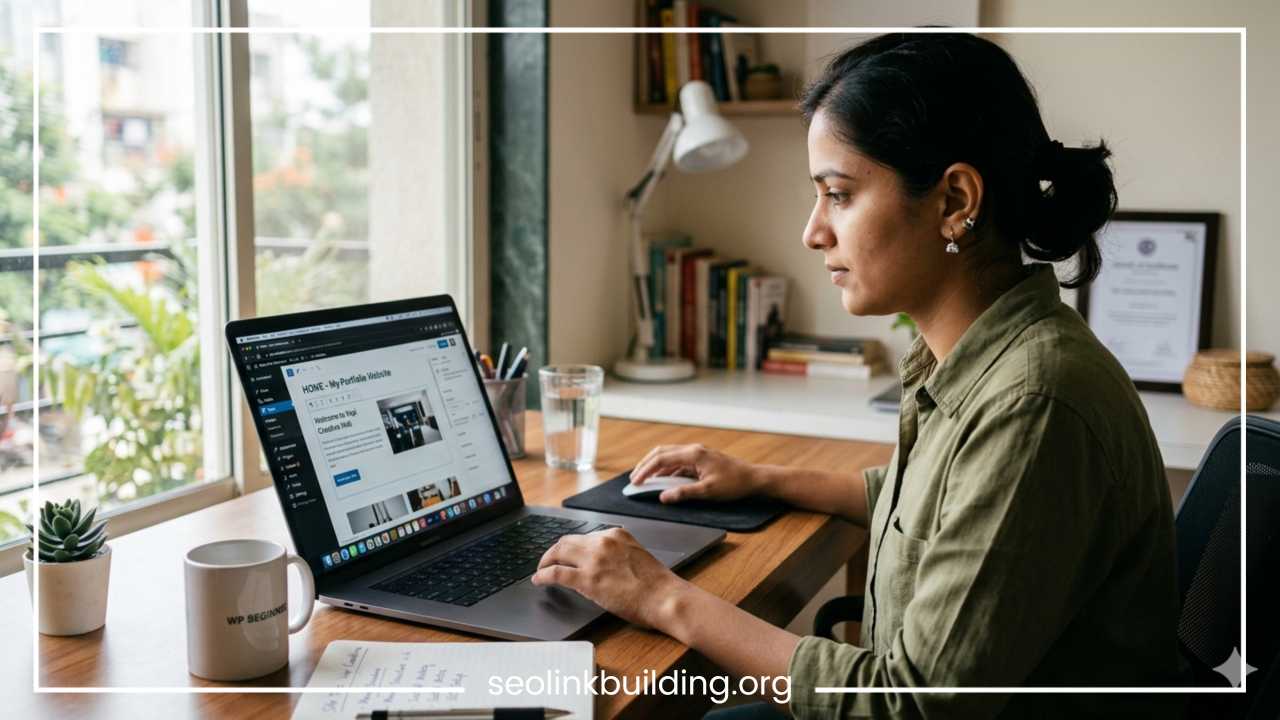
How to Design a Website with WordPress | Beginner’s Guide
Building a website used to require extensive knowledge of programming languages like HTML, CSS, and PHP. For someone without a technical background, launching a personal blog, an online portfolio, or a business website felt like an impossible mountain to climb. The emergence of modern content management systems has completely changed this landscape. Today, anyone with basic computer literacy can create a beautiful, functional, and highly professional website from scratch.
At the center of this digital revolution is WordPress. It is a powerful platform that powers a massive portion of the internet. It scales smoothly from basic single-page portfolios to massive eCommerce stores handling thousands of transactions daily. The secret to its widespread adoption lies in its balance of accessibility and limitless customizability.
For beginners, WordPress offers an intuitive graphical interface that replaces raw coding with visual editing, straightforward setting menus, and modular building components. By choosing this platform, you gain access to an open-source ecosystem that offers total ownership over your content, data, and digital infrastructure.
This comprehensive guide is designed specifically to take you from a complete absolute beginner to a confident website creator. Over the course of this deep dive, you will learn how the platform functions, how to choose host environments, configure fundamental structural settings, manipulate design themes, build essential pages, and secure your site against web vulnerabilities. By the time you complete this reading, you will possess a clear, step-by-step roadmap to bring your personal or professional digital vision to life.
Why Choose WordPress for Website Design?
When evaluating platforms for your online presence, it is easy to get overwhelmed by the sheer volume of website builders available. However, WordPress consistently remains the industry standard. To understand why it stands out, it is important to first distinguish between the two versions of the platform available online.
WordPress.com vs. WordPress.org
The distinction between these two options is the single most common point of confusion for beginners:
-
WordPress.com: This is a fully managed, commercial hosting service run by the company Automattic. It operates similarly to proprietary website builders like Wix or Squarespace. You sign up for an account, and they host your site on their infrastructure. While it offers ease of use, the free and lower-tier paid plans come with severe restrictions. You cannot install custom plugins, your monetization options are limited, and you do not have complete backend access to your site’s files.
-
WordPress.org: Also known as “self-hosted WordPress,” this is the completely free, open-source software package available for download. You take this software and install it on your own purchased web hosting server. This method gives you total, unrestricted ownership over your website. You can install any theme, deploy any plugin, run arbitrary advertisements, and modify the underlying code exactly as you see fit.
Note: This guide focuses exclusively on self-hosted WordPress.org due to its superior design freedom, long-term cost-efficiency, and lack of developmental ceilings.
Core Advantages of the Open-Source Ecosystem
The open-source nature of self-hosted WordPress means that its source code is publicly accessible to developers worldwide. This has created an unprecedented global community that continuously improves the software, patches vulnerabilities, and creates complementary design tools.
Because it is not owned by a single corporate entity, your website is entirely yours. If you become unhappy with your web hosting provider, you can easily package your entire WordPress site and migrate it to a competitor. You are never locked into a closed ecosystem or subject to sudden pricing hikes that threaten your digital property.
Customization and Extensibility Through Themes and Plugins
The core framework of WordPress is purposely lightweight. It provides a clean, stable foundation that you can infinitely expand using modular add-ons:
-
Themes: These dictate the visual appearance, styling, layouts, and typography of your website. There are thousands of free options in the official depository, alongside premium options designed by independent agencies. You can swap themes with a few clicks without losing your underlying page copy or media files.
-
Plugins: If themes provide the look, plugins provide the functionality. Plugins are small pieces of software that integrate seamlessly into your dashboard to perform specific tasks. They can transform a basic blog into a membership platform, a real estate directory, an appointment booking portal, or a full-scale digital storefront.
Native Search Engine Optimization Advantage
A beautiful design is useless if no one can find your website. WordPress is engineered out of the box with highly compliant semantic code. Search engine crawlers can easily navigate your site map, index your text assets, and interpret your media elements. The native layout simplifies the generation of clean, descriptive URLs, the categorization of content archives, and the structural tagging of headings. This gives your design a built-in head start in ranking visibility across search engine result pages.
Multi-Purpose Versatility
WordPress is no longer just a blogging utility. It serves as the foundation for an array of website types:
-
Blogs and Digital Magazines: Exceptional typography management, content scheduling features, and robust comment controls.
-
Business Websites: Clean informational pages, structural lead generation capture forms, and professional service carousels.
-
Creative Portfolios: High-performance media galleries, video background handling, and minimalist masonry layouts that put imagery first.
-
eCommerce Storefronts: Driven by the WooCommerce plugin ecosystem, allowing physical and digital product management, localized checkout gateways, and inventory tracking.
What You Need Before Designing a WordPress Website
Before you ever open the WordPress dashboard to begin adjusting colors or designing layouts, you must secure the foundational infrastructure required to live-stream a website to the broader internet. Think of this process as establishing real estate: you need a physical plot of land (hosting), an official street address (domain), and a secure lock for the front door (SSL).
The Domain Name
Your domain name is your unique digital identity (e.g., yourbusinessname.com). It is the exact sequence of characters users type into their web browser address bar to find your site.
When choosing a domain, prioritize simplicity and long-term brand alignment. Aim for a name that is short, easy to spell, and clear when spoken aloud. Avoid using hyphens, intentional misspellings, or numbers, as these elements lead to user confusion and typographical mistakes. Where possible, stick to standard top-level domains like .com, .org, or .net, unless you are serving a highly specific country-code market or niche community.
Web Hosting
Web hosting is the physical remote computer server where your website’s files, databases, imagery, and code files are safely stored. Every time a user requests your domain, the host server instantly delivers those assets to the visitor’s screen.
As a beginner, look for a hosting environment that offers optimized environments specifically for WordPress. Key features to check for include:
-
An intuitive dashboard or control panel interface.
-
Automated, daily website file and database backups.
-
An integrated, free security certificate installer.
-
Guaranteed uptime metrics (99.9% or higher).
-
Responsive technical support accessible via live chat or phone lines.
Secure Sockets Layer (SSL) Certificates
An SSL certificate encrypts the data pipeline traveling between your visitor’s browser and your hosting server. This technology prevents bad actors from intercepting sensitive information, such as passwords, personal forms, or credit card details.
When an SSL certificate is active, your site displays a secure padlock icon next to the URL, and your address prefix transitions from http:// to https://. Search engines penalize unencrypted websites, and modern web browsers display prominent security warnings to users who try to access sites without an active certificate. Fortunately, most modern web hosts bundle free SSL certificates directly into their basic hosting plans.
Determining Niche and Core Strategy
The final piece of preparation involves detailing your website’s core purpose. You must understand your target audience and the exact actions you want them to take before you begin designing.
Are you looking to capture email addresses for a newsletter? Are you displaying local landscaping services to generate inbound phone calls? Or are you looking to showcase high-resolution photography to sell prints? An explicitly defined niche dictates your layout structures, visual themes, navigation menus, and call-to-action choices down the road.
How to Install WordPress
With your domain, hosting, and SSL certificate secured, the next objective is installing the WordPress core application onto your hosting server. Modern web infrastructure has made this process incredibly accessible for absolute beginners.
One-Click Automated Deployments
The vast majority of reputable, user-friendly hosting companies feature quick-setup deployment utilities. These automated installers remove the need to interact directly with databases or raw server file transfers.
To complete an automated installation, log into your web hosting user portal and navigate to the website or server management tab. Look for an option labeled “Install WordPress,” “Website Setup Wizard,” or a script library tool like Softaculous.
Once clicked, the wizard will ask you to select your domain name from a drop-down list. It will then prompt you to generate your master administrative credentials. Be sure to establish a complex admin username and a highly secure password here. Avoid generic terms like “admin” or “webmaster,” as these are common targets for automated brute-force login attacks. After filling out these quick fields, click the “Install” button. The server backend will automatically handle creating database tables, moving core application directories, and linking configurations within a matter of minutes.
Manual Installation Overview
While rarely required today, it is helpful to understand the underlying architecture of a manual installation. This method involves downloading the official WordPress software zip archive directly from WordPress.org.
You then log into your hosting account’s file manager or connect via a File Transfer Protocol (FTP) client tool to manually upload the unzipped files into your server’s root public directory. Concurrently, you must access your host’s control panel database manager to manually provision a new MySQL database alongside an authorized database user account.
Finally, you run the installation file path via a browser window, pasting the exact database names and user access keys into a setup screen to establish communication between the code files and the data tables. While educational, beginners should rely on the automated installers to minimize early technical errors.
Accessing the Administrative Dashboard
Once the installation sequence completes, your website becomes live to the public using a default, placeholder design. To begin working on your site, you must access the private administrative back-office dashboard.
Open a new browser tab and type your domain name into the address bar, immediately followed by the standard administrative login extension: [yourdomain.com/wp-admin](https://yourdomain.com/wp-admin).
This URL brings up a secure login gateway screen. Enter the unique administrative username and password credentials you created during the initial setup wizard. Upon validation, you are directed to the primary WordPress Dashboard interface, which serves as your ultimate command center for all design, creation, configuration, and security activities.
Choosing the Right WordPress Theme
Your selected theme serves as the architectural blueprint for your design. It sets your site’s default structural grids, visual parameters, standard typography typography, and default layout behavior.
Free vs. Premium Options
The official WordPress theme directory contains thousands of free layouts vetted for secure programming standards. For many beginners, a high-quality free theme provides everything needed to establish a clean, professional online presence.
As your design needs grow, you may want to look into premium themes from verified external marketplaces or specialized design studios. Premium themes usually offer more comprehensive, pre-made page layout templates, built-in advanced design controls, and direct access to dedicated technical support desks. This direct support can save you hours of troubleshooting if you run into styling conflicts down the line.
Key Factors for Selection
It is easy to choose a theme based purely on a visually striking preview layout. However, smart design choices require evaluating performance metrics underneath the surface:
-
Responsive Design Frameworks: The theme must dynamically reorganize its layout structures across mobile phones, tablets, notebooks, and wide-screen desktop displays.
-
Loading Speed Efficiency: Look for lightweight, cleanly coded themes. Avoid themes that come bloated with excessive layout animations, built-in media players, or non-essential visual scripts that slow down page load times.
-
Plugin Interoperability: Ensure the theme explicitly states full compatibility with major ecosystem features like top-tier contact forms, translation tools, and page builders.
Recommended Beginner-Friendly Themes
Several modern themes are highly regarded for their balance of minimal file weight, speed, and deep visual customization options:
| Theme Name | Primary Strength | Ideal Use Case |
| Astra | Extremely lightweight; hundreds of pre-built starter import layouts. | Business sites, portfolios, and multi-page agencies. |
| GeneratePress | Focused heavily on performance, speed, and accessible clean development standards. | Developers, content-heavy blogs, and SEO-focused sites. |
| Kadence | Highly advanced header/footer configuration tools and layout controls. | Modern corporate layouts, landing pages, and online courses. |
| OceanWP | Deeply integrated eCommerce settings and flexible page-level layout controls. | Online shops and highly modular content structures. |
Installing and Activating Your Theme
To install your chosen theme, look at your main dashboard sidebar menu and navigate to Appearance, then select Themes. Near the top of this page, click the Add New Theme button.
If you are choosing a free option from the directory, use the search field to type in the name of your desired theme. Hover your cursor over the preview thumbnail card and click Install. Once the files finish downloading to your host directory, the button changes to read Activate. Click this to immediately make the theme live across your frontend website.
If you purchased a premium option from an external studio, click Upload Theme at the top of the interface instead. Select the raw .zip archive file provided by your vendor, upload it directly through the dashboard interface, and then click activate.
Essential WordPress Design Settings
Before building individual pages or crafting headers, you should adjust a few default WordPress platform settings. Configuring these core options early on creates a stable environment for your design work and helps prevent broken links or layout issues later.
Site Title and Tagline
Navigate to Settings and select the General tab. At the top of this interface, define your official Site Title and an accompanying Tagline.
The site title is your main brand name, while the tagline is a short sentence explaining what your business or blog does. These text elements frequently show up in browser tab titles and search engine snippets, so keep them clear, descriptive, and keyword-conscious. On this same page, double-check that your administrative email address is accurate and that your site’s local timezone, date formatting, and primary language preferences align with your local target market.
Permalink URL Architecture
Permalinks are the permanent web address URLs used to access your individual pages and articles. By default, older installations might configure an unoptimized query structure like [yourdomain.com/?p=123](https://yourdomain.com/?p=123). This format looks suspicious to users and offers zero context to search engine bots.
To fix this, go to Settings and click Permalinks. Under the configuration options, select Post Name.
Optimized Structure Example: yourdomain.com/sample-post/
This ensures that every page you publish automatically uses its actual title in the URL string. This simple step creates clean, human-readable links that improve your user experience and boost your search engine optimization value.
Homepage Configurations
By default, WordPress displays a chronological feed of your latest blog posts on the main root domain page. If your goal is to build a traditional business website, an agency portfolio, or a landing page, you need a dedicated, static homepage instead.
To change this setup, navigate to Settings and choose Reading. Locate the setting at the top labeled “Your homepage displays” and switch the toggle from “Your latest posts” to A static page.
The system will then ask you to assign a specific page to act as your Front Page, alongside a separate page to handle your active blog post feed. If you have not created these pages yet, you can circle back to this menu to apply the configuration after your foundational pages are generated.
Discussion and Comment Rules
If your website includes a blog layout, visitors can leave comments under your articles by default. While this builds community, it also attracts automated spam bots that flood sections with low-quality, malicious links.
Go to Settings and open the Discussion page. To protect your site’s reputation, check the option that forces all comments to be manually approved by an administrator before appearing publicly on the site. You can also turn off comments completely for specific pages or your entire site if you want a purely informational business presence.
Designing Your Website Layout
Every successful website layout relies on an intuitive visual structure that makes it simple for visitors to find exactly what they are looking for. A great design balances clear navigation, cohesive color palettes, and structured layouts across both desktop screens and mobile devices.
Header Design and Structural Menus
The header sits at the absolute top of your website pages and acts as your site’s primary anchor point. It typically holds your corporate logo image on the left, with the primary navigation menu stretching across the right or tucked into an accessible mobile menu icon.
To build out your main navigation menu, go to Appearance and select Menus. Give your menu a clear name like “Primary Header Menu,” and check the box to assign it to your theme’s default header location.
Use the sidebar panel to choose from your published pages, custom links, or blog categories, and click Add to Menu. You can easily drag and drop these items to change their order, or slide them slightly to the right to create nested drop-down sub-menus for a cleaner layout.
Designing Core Content Zones
The space between your top header and your bottom footer is your main content area. This area typically includes a few key design sections:
-
Hero Section: The very first area a user sees below the header. It should feature an attention-grabbing headline, a brief introductory sub-headline, and an explicit call-to-action button (e.g., “Get a Quote” or “Explore Portfolio”).
-
Sidebars: Vertical layout columns placed alongside your main content body. While common on older websites, modern design trends usually leave sidebars off informational pages to keep users focused on the main content. They are still highly useful on blog feeds for showing category lists, search bars, and recent posts.
Footer Layout Design
The footer sits at the very bottom of your pages and acts as a safety net for users who scroll all the way down. It is the perfect place to put useful structural items:
-
Legal copyright statements and links to privacy policies.
-
Up-to-date business address details, email links, and phone numbers.
-
Interactive embedded social media icon links.
-
A clean, simplified text link directory mapping out your main website layout.
Color Schemes and Typography Consistency
A messy design with too many conflicting fonts and colors feels chaotic and unprofessional to users. Limit your design to a cohesive palette of 3 to 4 colors:
-
Primary Dominant Color: Used for major structural blocks, headers, and backgrounds (usually a clean neutral white or deep dark hue).
-
Secondary Brand Color: Used for structural text elements, menu links, and sub-headings.
-
Accent Color: A bright, contrasting color used exclusively for important items like call-to-action buttons, signup forms, and alerts.
Apply a similar rule to your typography by selecting two complementary font families. Use a clear, bold font for your primary structural headings (H1, H2, H3), and a clean, highly legible font for your main body paragraphs. Keep your font sizes comfortable to read, ensuring your body copy never drops below 16 pixels.
How to Create Important Website Pages
With your visual layout and style guidelines established, you can begin building the actual structural pages that make up your website.
Creating a New Page
To build a page, go to your main admin dashboard panel, hover over Pages, and select Add New Page. This opens up your visual editing workspace. At the top of this screen, add a clear title for the page, then use the main canvas area below to start adding your text copy, media blocks, and layout elements.
The Six Essential Core Pages
Most standard websites rely on a core set of fundamental pages to provide a professional, user-friendly experience:
-
Home Page: This is your primary digital storefront window. It needs to clearly explain exactly what you offer within the first few seconds of landing on the page. Use a clean, scannable layout built around clear value propositions, trust-building testimonials, and obvious call-to-action buttons.
-
About Page: This page builds human connection and trust with your audience. Use it to share your business history, your core mission statement, and photos of your team. This helps transform an anonymous website into a relatable, trustworthy brand.
-
Services or Products Page: This is your main revenue-driving page. Detail exactly what you offer, break down your pricing options clearly, explain your process, and address common customer objections directly.
-
Blog Archive Page: A central feed that organizes your articles, thought leadership pieces, and industry news updates. This page keeps your site dynamic, encourages visitors to stay longer, and continuously attracts organic search engine traffic.
-
Contact Page: A clean, functional page designed to make reaching out effortless. Include a secure contact form, your direct email addresses, an embedded map if you have a physical shop, and clear links to your social profiles.
-
Privacy Policy Page: A mandatory legal page required by modern data privacy laws worldwide. It explicitly outlines how your website collects, protects, and handles visitor data, tracking cookies, and form submissions.
Using the WordPress Block Editor (Gutenberg)
The native editing experience in WordPress is driven by the Gutenberg Block Editor. This layout tool uses a modular design approach, treating every paragraph, headline, image, and video as an independent, moveable block.
Navigating the Editor Interface
When you open the block editor workspace, click the blue + (Block Inserter) button in the top left corner to open up the block library panel.
From here, you can choose from a wide variety of structural elements and drag them directly onto your editing canvas. You can easily move these elements up or down using the arrow keys on each block, or by dragging them to a new position. If you select a specific block on your canvas, a settings sidebar opens on the right side of your screen. This sidebar gives you deep control over that specific block, letting you change font sizes, adjust background colors, add custom padding, or tweak border radius styling.
Essential Design Blocks
-
Paragraph and Heading Blocks: The basic tools for your written content. Always use heading levels correctly (H2, H3) to organize your thoughts and make your pages easy for both users and search engines to read.
-
Image and Gallery Blocks: Inline tools that let you upload images, write alt text description tags, resize your graphics, and arrange images into clean, responsive grid layouts.
-
Columns and Group Blocks: Advanced structural blocks that let you divide your page into multi-column layouts. These are perfect for displaying features side-by-side or grouping elements together with a shared background color.
-
Buttons: High-visibility elements that you can fully customize with different background colors, rounded corners, custom text, and internal or external links to guide users toward your primary actions.
Exploring Advanced Page Builders
While the default Gutenberg editor is powerful and fast, some users prefer the advanced layout control of drag-and-drop page builder plugins. Popular options like Elementor, Beaver Builder, and WPBakery add live, front-end visual design workspaces to your site. They come packed with large libraries of pre-designed page sections, advanced layout settings, and complex animations. However, keep in mind that these large builders add extra code weight to your site. For the fastest performance, try sticking to the native block editor and optimizing your layouts with lightweight block extension plugins.
Best Plugins for Website Design
Plugins are modular tools that expand your website’s features, allowing you to add advanced layout designs, optimization tools, and security features without writing code.
Categorized Recommended Software Solutions
To help you choose from the thousands of options available, here is a breakdown of the most reliable and trusted plugins in the ecosystem:
| Plugin Category | Recommended Software Option | Primary Practical Purpose |
| Page Building | Elementor / Kadence Blocks | Adds advanced visual layout control and pre-made sections to your site. |
| Search Optimization | Rank Math / Yoast SEO | Helps you manage title tags, meta descriptions, XML sitemaps, and on-page optimization. |
| Platform Security | Wordfence Security | Adds an active firewall, malware scanner, and login protection tools to your site. |
| Speed & Performance | LiteSpeed Cache / WP Rocket | Speeds up loading times through file caching, code optimization, and script management. |
| Database Backups | UpdraftPlus | Automatically backs up your entire site to secure cloud storage like Google Drive or Dropbox. |
| Contact Management | WPForms / Fluent Forms | Lets you build secure contact forms, lead capture tools, and booking forms. |
How to Install a Plugin
To add a plugin to your site, navigate to Plugins in your admin dashboard sidebar and click Add New Plugin.
Use the search box in the top right to find the specific tool you need. Once it pops up, click Install Now. When the file finishes downloading, the button will turn into a blue Activate button. Click it to turn on the plugin and add its settings panel to your dashboard menu.
How to Optimize Website Design for SEO
Search Engine Optimization (SEO) ensures your website is structured so search engines can easily find, crawl, and rank your content. Good SEO habits should be built right into your design process from day one.
Structuring Content with Heading Hierarchy
Always use a clean, logical heading structure to organize your content. Your pages should only feature a single Heading 1 (H1) tag at the absolute top, which serves as the main title of the page.
As you break your content down into sections, use Heading 2 (H2) tags for your main subtopics. If you need to break those subtopics down even further, use Heading 3 (H3) tags beneath them. This clear structure helps search engine crawlers understand the hierarchy of your information, while making your pages much easier for human visitors to scan.
Optimizing Images and Media Files
High-resolution images can quickly slow down your pages if they aren’t optimized. Before you upload any graphic to your site, make sure to compress the file size using an online optimization tool or a dedicated WordPress plugin.
Always save your images in modern web formats like WebP, which offer excellent quality at a fraction of the file size of older PNG or JPEG formats. Once uploaded, make sure to fill out the Alt Text (Alternative Text) field for every image. This text describes the image for visually impaired users using screen readers, while helping search engine bots understand and index your graphics.
Designing a Clean Internal Linking Network
An internal link connects one page on your website to another page on the same domain. Building a natural network of internal links helps pass ranking value between your pages, while making it easy for visitors to discover related content. For instance, you can link from a main services page to a detailed blog post that breaks down a specific topic further. Always use descriptive, natural language for your link text, avoiding unhelpful phrases like “click here” or “read more.”
Making Your Website Mobile Responsive
With more than half of all global web traffic coming from smartphones and tablets, making your website mobile-responsive is no longer optional. If your site is hard to read or navigate on a phone, visitors will instantly leave, and search engines will lower your rankings.
Fluid Grid Frameworks
A mobile-responsive layout changes dynamically based on the screen size it’s being viewed on. Instead of using rigid, fixed widths measured in pixels, responsive design relies on flexible percentages and fluid layouts. This allows multi-column desktop layouts to automatically stack into a single, clean column on mobile screens, ensuring your text remains perfectly readable without requiring users to pinch or zoom.
Live Responsive Testing Techniques
Never assume your website looks perfect on mobile just because it looks great on a desktop monitor. Regularly test your responsive layouts using the built-in WordPress Customizer Workspace.
Navigate to Appearance and select Customize. Look at the bottom of the editing sidebar for the small device icons (desktop, tablet, smartphone). Clicking these icons lets you preview exactly how your layout scales across different screen sizes in real time.
For even deeper testing, open your live website on your own phone, or use the developer inspection tools in your desktop browser to mimic various mobile device layouts.
Optimizing Touch Navigation Controls
Navigating a website with a finger on a touch screen requires different design considerations than using a precise mouse cursor on a desktop. Ensure all interactive links, navigation menus, and call-to-action buttons are large enough to be easily tapped without accidental clicks. Give your buttons plenty of spacing, keeping them at least 48 pixels wide and tall with generous margins between clickable items.
Improving Website Speed and Performance
Website loading speed is a critical factor for both user experience and search engine rankings. If a page takes more than a few seconds to load, visitors will quickly lose patience and bounce to a competitor’s site.
The Power of Caching
Every time a visitor lands on a standard WordPress page, your hosting server has to process multiple background requests, fetch data from your database, and dynamically assemble your page files from scratch. This process takes valuable time and resources.
Turning on page caching solves this issue by saving a static HTML version of your fully assembled page directly on the server. The next time a user visits that page, your host can instantly deliver that pre-built static file without running any heavy database queries, dramatically cutting down your page load times.
Deploying Content Delivery Networks (CDNs)
A Content Delivery Network (CDN) is a global network of servers placed in data centers all around the world. When you link your website to a CDN service, copies of your static files (like images, CSS, and JavaScript files) are automatically stored across all of these global server locations.
When a user visits your site, the CDN automatically delivers these files from the server physically closest to them. This geographic shortcut reduces latency and ensures your website loads incredibly fast for visitors, no matter where they are located in the world.
Minimizing Plugin Overload
While plugins are fantastic for adding features to your site, installing too many of them can quickly degrade your performance. Every active plugin adds extra code, style sheets, and scripts that your visitors’ browsers have to download and process.
Regularly audit your plugin menu and deactivate any tools you aren’t actively using. Stick to lightweight, high-quality plugins from trusted developers, and look for multi-purpose tools that can handle several tasks at once to keep your site lean and fast.
Website Security Basics
Because WordPress is the most popular website platform in the world, it is a frequent target for hackers and automated malicious bots. Protecting your digital assets requires setting up a few basic, proactive security layers.
Keeping Core Files and Software Updated
Outdated software is the single most common entry point for website security breaches. Developers regularly release updates for the WordPress core system, your themes, and your plugins to patch security vulnerabilities and fix bugs.
Make it a habit to log into your dashboard at least once a week to run pending updates, or turn on automatic updates for your trusted plugins and themes. Before running major updates, it is always smart to run a quick manual backup just in case any software updates conflict with each other.
Enforcing Strong Password Policies
Many website hacks happen simply because of weak login credentials. Avoid obvious admin usernames and use a secure password manager to generate long, complex, and completely random passwords for every user account on your site.
For an extra layer of protection, consider installing a security plugin that lets you turn on Two-Factor Authentication (2FA). This requires users to enter a temporary verification code from their phone before logging in, rendering standard password-cracking attempts useless.
Setting Up Automated Remote Backups
Think of regular backups as your ultimate safety net. If your website is ever hacked, compromised by a bad update, or accidentally broken during design changes, having a recent backup ensures you can restore your site to perfect working order within minutes.
Use a reliable backup plugin to schedule automated daily or weekly backups of both your website files and your databases. Crucially, make sure these backups are automatically sent to a secure, external cloud storage location (like Dropbox, Amazon S3, or Google Drive) rather than stored directly on your hosting server. If your server ever goes down or gets compromised, your off-site backup files will remain completely safe and accessible.
Common WordPress Design Mistakes to Avoid
When designing your first WordPress website, it is easy to fall into a few common traps that can hurt your user experience, slow down your speed, or impact your search rankings. Awareness of these mistakes makes them easy to avoid:
-
Installing Too Many Plugins: Avoid downloading every interesting plugin you come across. Too many active plugins create software conflicts, slow down performance, and create security holes.
-
Using Unoptimized, Heavy Images: Never upload raw photos straight from a phone or camera to your media library. Always compress your images and resize them to the actual dimensions needed for your layout first.
-
Choosing Complex, Slow Themes: Avoid flashy themes packed with complicated built-in animations, music players, and complex layouts. Stick to clean, lightweight, minimalist frameworks that you can customize safely.
-
Cluttering Your Page Layouts: Give your design breathing room. Avoid crowding your pages with endless pop-ups, multiple sidebar banners, and conflicting blocks of text. Clean white space makes your site easier to read and look more professional.
-
Ignoring the Mobile User Experience: Never design exclusively for desktop screens. Always check how your layouts look and function on a mobile device every time you make structural changes or add new elements.
-
Poor Color Contrast Choices: Always ensure your text contrasts sharply against its background color (like dark gray text on a crisp white background). Poor contrast makes your site incredibly difficult to read and alienates visually impaired users.
Launching Your WordPress Website
Before you share your new website with the world, take the time to run through a comprehensive pre-launch checklist. Testing your site thoroughly prevents embarrassing errors and ensures your first visitors have a seamless experience.
Pre-Launch Testing Checklist
Review each of these items systematically before launching:
-
Test Every Single Page: Open every page on your site and read through the content carefully to catch any spelling mistakes, grammatical errors, or layout formatting issues.
-
Check Link Functionality: Click every menu link, button, and text link across your site to ensure they direct users to the correct page and don’t lead to broken 404 error pages.
-
Verify Form Submissions: Fill out and submit every contact form, email subscription box, and quote request on your site. Confirm that the confirmation messages display correctly and that the notification emails arrive safely in your inbox.
-
Review Mobile Performance: Pull up your website on several different smartphones and tablets. Make sure your navigation menus open smoothly, buttons are easy to tap, and images scale beautifully.
-
Run a Speed Benchmark Test: Use a free online speed tool like Google PageSpeed Insights or GTmetrix to test your live loading speeds. Address any high-priority speed suggestions, such as compressing unoptimized images or turning on file caching.
-
Confirm Your SEO Basics: Double-check that your permalinks are set to “Post Name,” that your image alt tags are filled out, and that your site settings don’t accidentally block search engines from indexing your site.
Once you have verified every item on this checklist, you can confidently launch your site and begin driving traffic to your brand-new online presence.
Final Thoughts
Designing a professional website with WordPress is an empowering journey that opens up endless digital opportunities. The platform successfully bridges the gap between complex software engineering and creative visual design, giving absolute beginners the tools to build world-class web spaces from scratch.
The secret to success with WordPress lies in building a clean, solid foundation. By choosing a high-quality hosting environment, deploying a fast, lightweight theme, and installing only essential plugins, you ensure your website remains fast, secure, and accessible for years to come.
Remember that website design is an iterative, ongoing process. You do not need to create a flawless, multi-page ecosystem overnight. Focus first on launching a clean, professional, single-page layout that covers your core business details, and then naturally expand your site with new features, pages, and blog content as your brand grows. Take that exciting first step, open up your dashboard, and start designing your first WordPress website today.
Frequently Asked Questions (FAQ)
What is the difference between WordPress.com and WordPress.org for beginners?
The core difference comes down to hosting and ownership. WordPress.com is a fully managed, commercial service where your site is hosted on their infrastructure, but free and lower-tier plans come with strict limitations on customization, themes, and plugins. WordPress.org (self-hosted WordPress) is the free, open-source software that you install on your own purchased web hosting server. For complete design freedom, monetization rights, and total data ownership, beginners should always choose self-hosted WordPress.org.
How much does it cost to build a WordPress website from scratch?
While the WordPress core software itself is completely free, you will need to pay for a few foundational elements to go live. A domain name typically costs around $10 to $15 per year, and reliable starter web hosting ranges from $3 to $8 per month. A secure SSL certificate is usually bundled for free by modern hosting providers. This means a beginner can comfortably launch a fully operational, professional website for an initial investment of roughly $50 to $100 for the entire first year.
Can I design a website with WordPress without knowing how to code?
Yes, you can design a highly professional website on WordPress with zero coding knowledge. The platform uses a visual content editing interface called the Gutenberg Block Editor, which treats elements like paragraphs, headers, images, and buttons as modular blocks you can drag, drop, and rearrange. Additionally, beginner-friendly themes offer visual settings menus that let you change global colors, fonts, and page layouts without writing a single line of HTML or CSS code.
Do I need a separate page builder plugin like Elementor for WordPress?
You do not strictly need a third-party page builder like Elementor to create a beautiful website. The native WordPress block editor is fast, lightweight, and fully capable of creating modern, responsive page layouts. However, if you want advanced design features like complex animations, pre-designed section templates, and a live front-end visual workspace, plugins like Elementor or Beaver Builder can make the process easier—though they do add extra code weight to your site.
How do I make sure my WordPress website is secure from hackers?
You can protect your WordPress site by following a few critical security best practices. First, always use strong, complex passwords for all user accounts and consider enabling Two-Factor Authentication (2FA). Second, keep your WordPress core installation, themes, and plugins updated to patch potential security holes. Finally, install a reputable security plugin like Wordfence to set up an active firewall, and use an automated backup utility like UpdraftPlus to safely store copies of your site off-server.